
Fusion-360 - Linux (Wine Version)

Hello and Welcome on my GitHub-Channel "Crinkfly"!
In this repository you can find some instructions for Autodesk Fusion 360, where you get a way to install this program on your system. I will give you a feedback at different intervals, when there is something new.
My goal is that we can also use Autodesk Fusion 360 on Linux and so we don't need longer two operating systems for this program, when we use this for our projects. I think this is a fantastic idea!
You will get more information about this program, then you can visit the original website of Autodesk Fusion 360 with this link: https://www.autodesk.com/products/fusion-360/features
Also you get more informations about Fusion 360, when you visit my other channels:
- Facebook: https://www.facebook.com/cryinkfly/
- Instagram: https://www.instagram.com/cryinkfly/
- YouTube: https://www.youtube.com/channel/UCJO-EOBPtlVv5OycHkFPcRg

My system:
OS: openSUSE Leap 15.3 Beta x86_64
Kernel: 5.3.18-52-default
DE: Xfce
CPU: Intel i7-7700HQ (8) @ 3.800GHz
GPU: NVIDIA GeForce GTX 1060 Mobile 6G (Community Repository Nvidia & CUDA Repository)
Memory: 32GB
Wine version: wine-6.8 (WINEARCH = win64)
Installation on openSUSE Leap & Tumbleweed:

1.) Download my scripts: Installation-Script & Start-Script
2.) On openSUSE Tumbleweed you must delete the steps for adding the wine-Repository in my file "fusion360-install.sh"!
3.) Follow my instructions in my files "fusion360-install.sh" & "fusion360-start.sh" !
*Notice: Check if you have installed the newest graphics driver on your system!
Installation on Ubuntu, Linux Mint, ...:

1.) Download my scripts: Installation-Script & Start-Script
2.) When you system use a newer based Ubuntu version as like Ubuntu (Focal Fossa), then you must change the wine-Repository in my file "fusion360-install.sh (Visit this site: https://wiki.winehq.org/Ubuntu)!
3.) Follow my instructions in my files "fusion360-install.sh" & "fusion360-start.sh" !
*Notice: Check if you have installed the newest graphics driver on your system!
Installation on Fedora:

1.) Open a Terminal and run this command sudo nano /etc/hosts (Change this file!)
     127.0.0.1     localhost
     127.0.1.1     EXAMPLE-NAME

     ::1 ip6-localhost ip6-loopback
     fe00::0 ip6-localnet
     ff00::0 ip6-mcastprefix
     ff02::1 ip6-allnodes
     ff02::2 ip6-allrouters
     ff02::3 ip6-allhosts
2.) Run this command: sudo nano /etc/hostname (Change this file!)
EXAMPLE-NAME
3.) Reboot your system
4.) Download my scripts: Installation-Script & Start-Script
5.) Follow my instructions in my files "fusion360-install.sh" & "fusion360-start.sh" !
*Notice: Check if you have installed the newest graphics driver on your system!
Installation on Manjaro (based on Arch Linux):

1.) Download my scripts: Installation-Script & Start-Script
2.) Follow my instructions in my files "fusion360-install.sh" & "fusion360-start.sh" !
*Notice: Check if you have installed the newest graphics driver on your system!
Installation with Flatpak (Ubuntu) - EXPERIMENTAL:
-
Check if your system is up to date: Open a Termial -> Run this command: sudo apt-get update && sudo apt-get upgrade (And it's important that have installed the newest graphics driver!)
-
Run this command: sudo apt-get install p7zip p7zip-full p7zip-rar && sudo apt-get install curl
-
Run this command (install flatpak): sudo apt install flatpak
-
Run this command: flatpak remote-add --user --if-not-exists flathub https://flathub.org/repo/flathub.flatpakrepo
-
Run this command sudo nano /etc/hosts (Change this file!)
127.0.0.1 localhost 127.0.1.1 EXAMPLE-NAME ::1 ip6-localhost ip6-loopback fe00::0 ip6-localnet ff00::0 ip6-mcastprefix ff02::1 ip6-allnodes ff02::2 ip6-allrouters ff02::3 ip6-allhosts -
Run this command: sudo nano /etc/hostname (Change this file!)
EXAMPLE-NAME -
Reboot your system!
-
Open a Terminal -> Run this command: flatpak install flathub org.phoenicis.playonlinux
-
Run this command: cd Downloads && mkdir fusion360 && cd fusion360
-
Run this command: wget https://dl.appstreaming.autodesk.com/production/installers/Fusion%20360%20Admin%20Install.exe (Here we downloading the installer of Fusion 360.)
-
Close the terminal
-
Then you must look to my instruction: https://github.com/PhoenicisOrg/phoenicis/issues/2389 (Safe your winetricks (file) here: /home/YOUR-USER/Downloads/ winetricks)
-
Now, you can continue with the installation of Fusion 360.
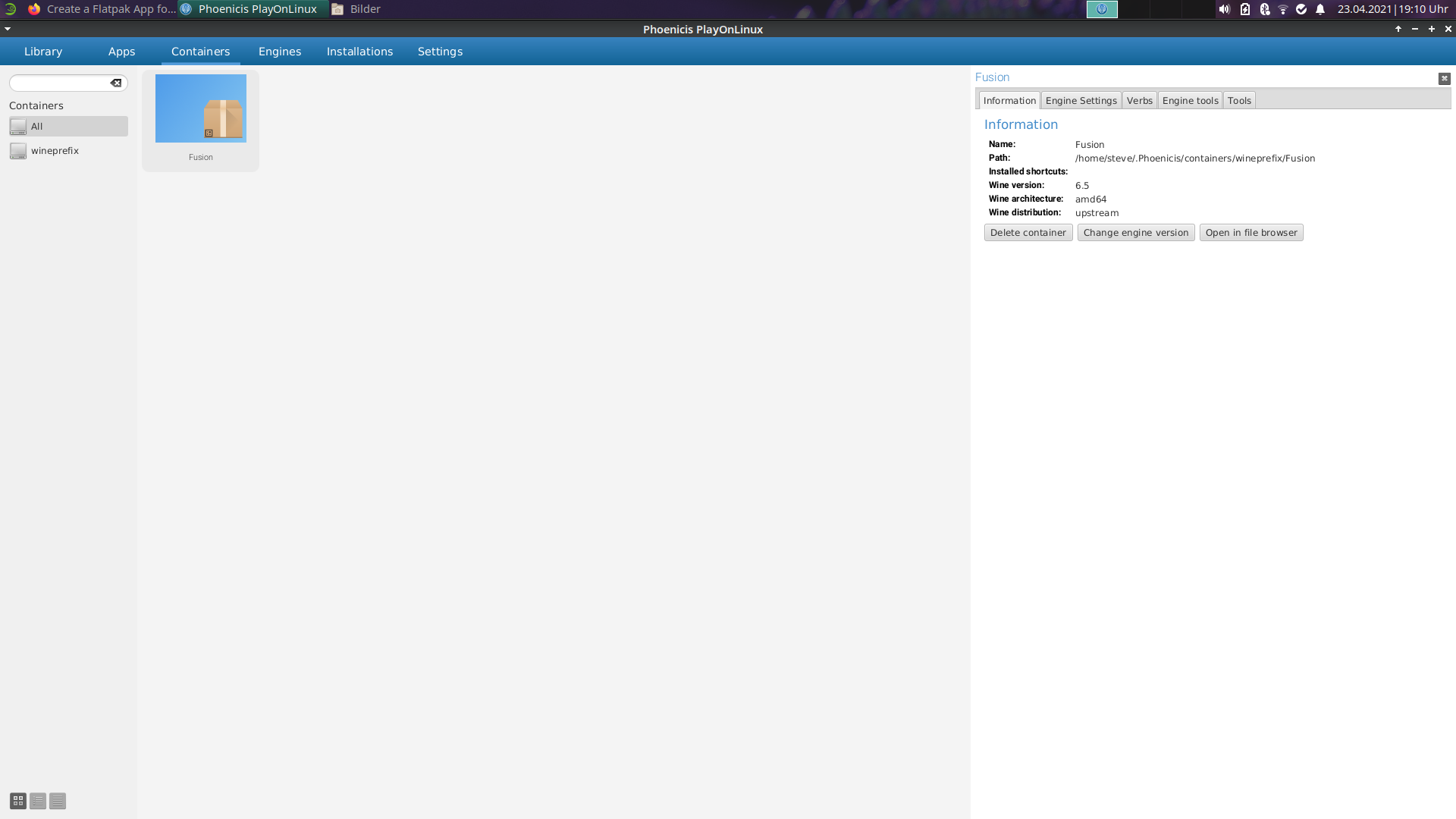
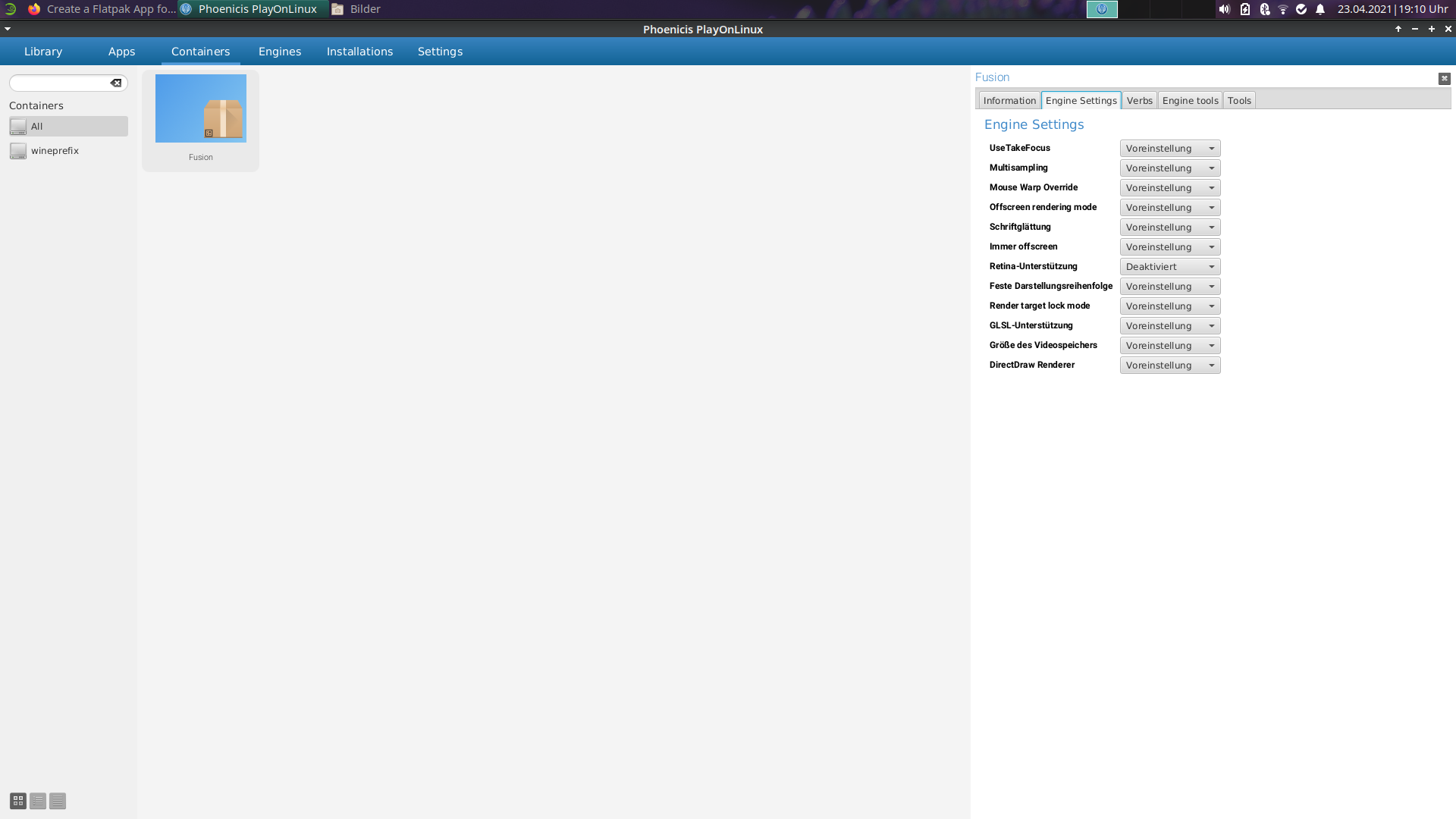
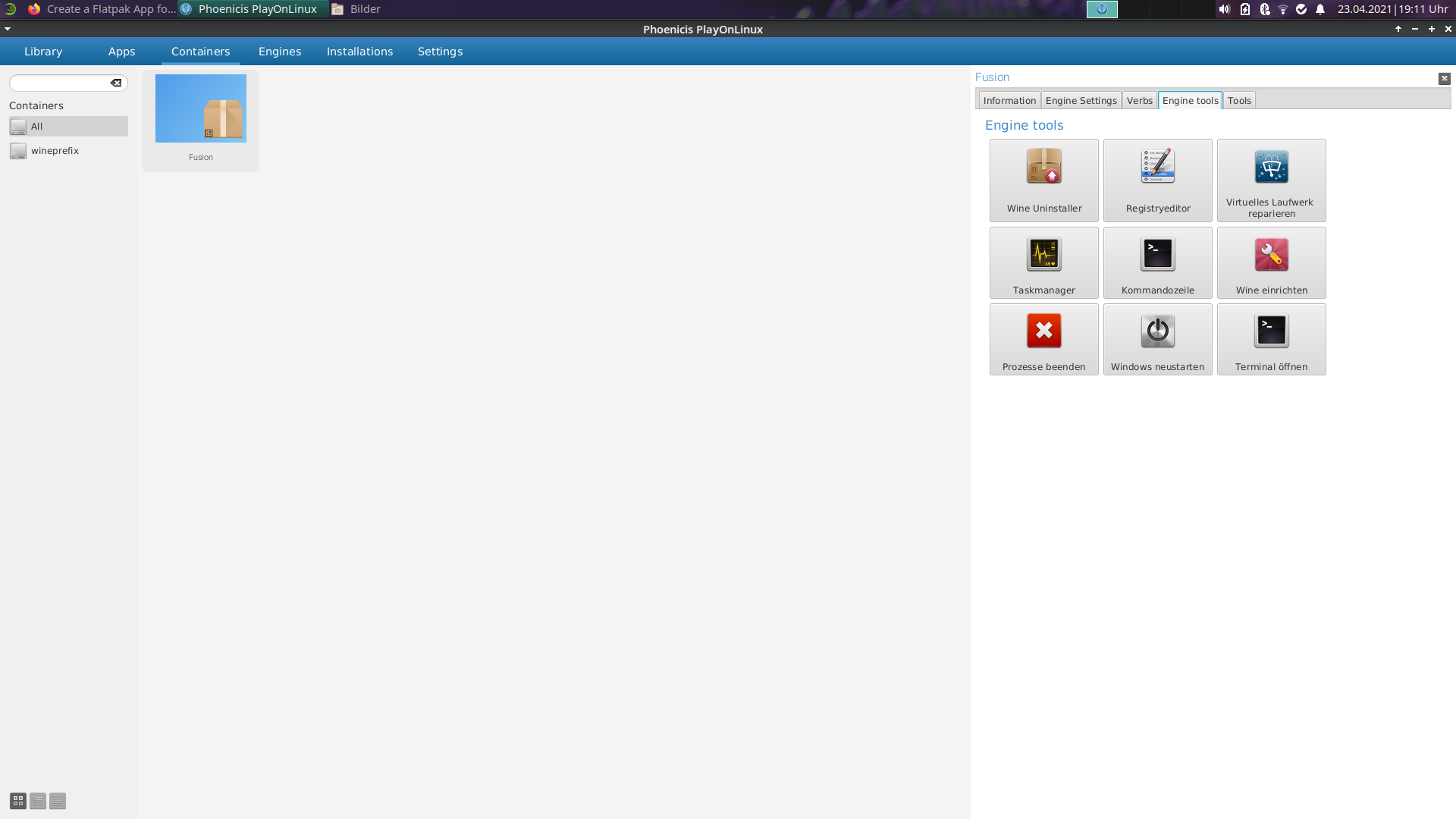
- Open the terminal:
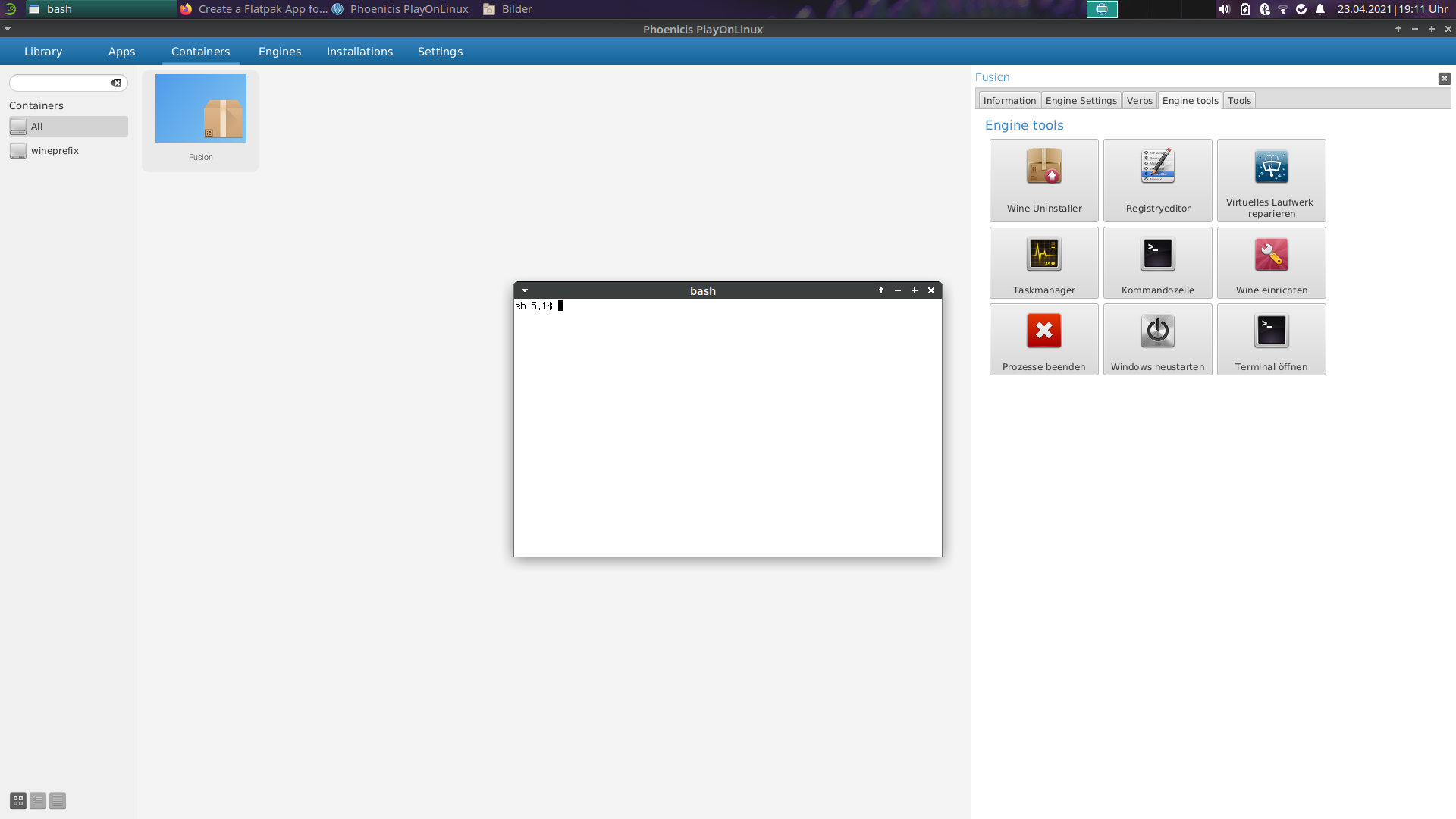
-
Run this command: cd $HOME/Downloads/ && sh winetricks -q corefonts vcrun2017 msxml4
-
Run this command: winecfg
-
Set the windows version to Windows 10
-
Run this command: cd fusion360 && wine Fusion\ 360\ Admin\ Install.exe -p deploy -g -f log.txt --quiet (Run this command 2x)
-
Close the Terminal.
-
Open your Filebrowser (for example Thunar) -> Go to this path: /home/YOUR-USER/.var/app/org.phoenicis.playonlinux/.Phoenicis/containers/wineprefix/Fusion/drive_c/users/steve/Application Data/Autodesk/Neutron Platform/
-
Create a new folder: Options
-
Create a new file: NMachineSpecificOptions.xml
-
Insert this text:
<?xml version="1.0" encoding="UTF-16" standalone="no" ?> <OptionGroups> <BootstrapOptionsGroup SchemaVersion="2" ToolTip="Special preferences that require the application to be restarted after a change." UserName="Bootstrap"> <driverOptionId ToolTip="The driver used to display the graphics" UserName="Graphics driver" Value="VirtualDeviceGLCore"/></BootstrapOptionsGroup> </OptionGroups>
... safe this file, close the editor and your file-browser.
- Open the terminal:
- Run this command: cd drive_c/ProgramData/Microsoft/Windows/Start\ Menu/Programs/Autodesk/ && wine Autodesk\ Fusion\ 360.Ink
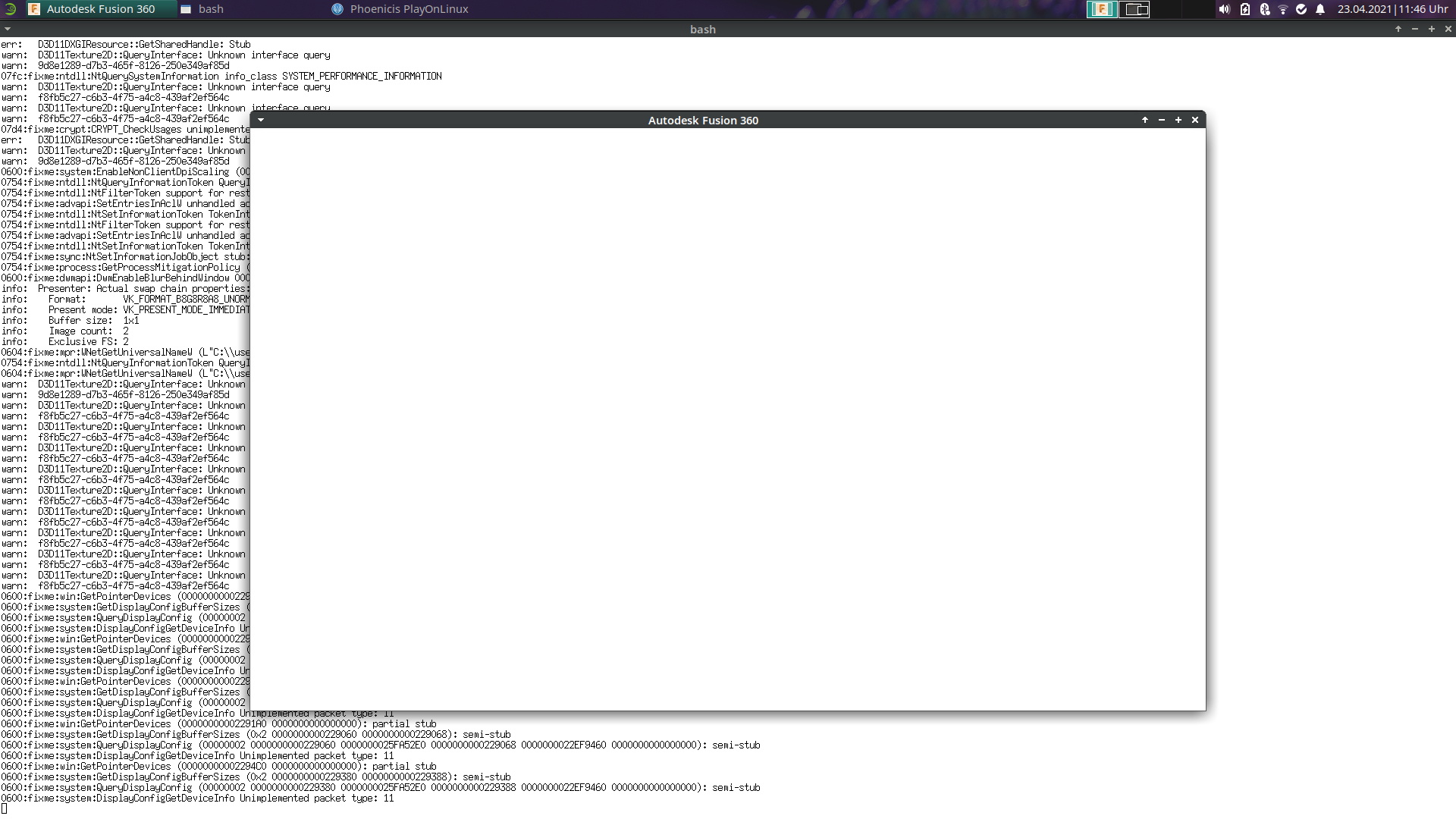
Fusion 360 dosn't work at the moment with this method! Only the installation of Fusion 360 works!
But you can see now, that I search for a solution, so that Fusion 360 works on all Linux distributions. This is just one of my ways to get Fusion 360 up and running using Flatpak.
If you use Wine under XWayland, you can activate the option for "Emulating a virtual desktop" in the Graphics Tab in winecfg, to avoid problems with:
- flickering
- wrong window location
- wrong mouse cursor location and clicks
- keyboard detection
Note: Simply ignore errors that occur during installation.
The installation of Fusion 360 was repeated several times to ensure that it really worked.
Special thanks to https://github.com/probonopd for his old guide here: https://gist.github.com/probonopd/0fab254aa0b6fc371d8db641822bd530 ! :-)
Application Maintainer (WineHQ): https://appdb.winehq.org/objectManager.php?sClass=version&iId=36468
- @cryinkfly (Administrator & Project Manager)
Special thanks go to these users:
- @dreamcat4
- @mike-lloyd03
- @Tony763
... they help me to get work Fusion 360 on Linux!!!
Which workspaces I have tested:
- Construction (works)
- Animation (works)
- Rendering (works , but when you will saving a rendered file, then you must changing something: https://github.com/cryinkfly/Fusion-360---Linux-Wine-Version-/releases/tag/v1.2
- Production (works)
- Simulation (works)
- Generative Design (works)
- Documentation (dosn't work correctly)
When you will dosn't use openGL:
-
Run this command: WINEPREFIX=~/.fusion360 sh winetricks -q corefonts vcrun2017 msxml4 dxvk (Then you must install also dxvk!)
-
Run this command: WINEPREFIX=~/.fusion360 winecfg -> Go to libraries -> Change these options:
- d3d10core = disabled
- d3d11 = builtin
- d3d9 = builtin
- dxgi = builtin
When you have opened Fusion 360 -> Go to preferences and in General under Graphics driver, select DirectX 9.
If you have some problems or a question:
https://github.com/cryinkfly/Fusion-360---Linux-Wine-Version-/issues